How to save videos in Procreate app- quick guide
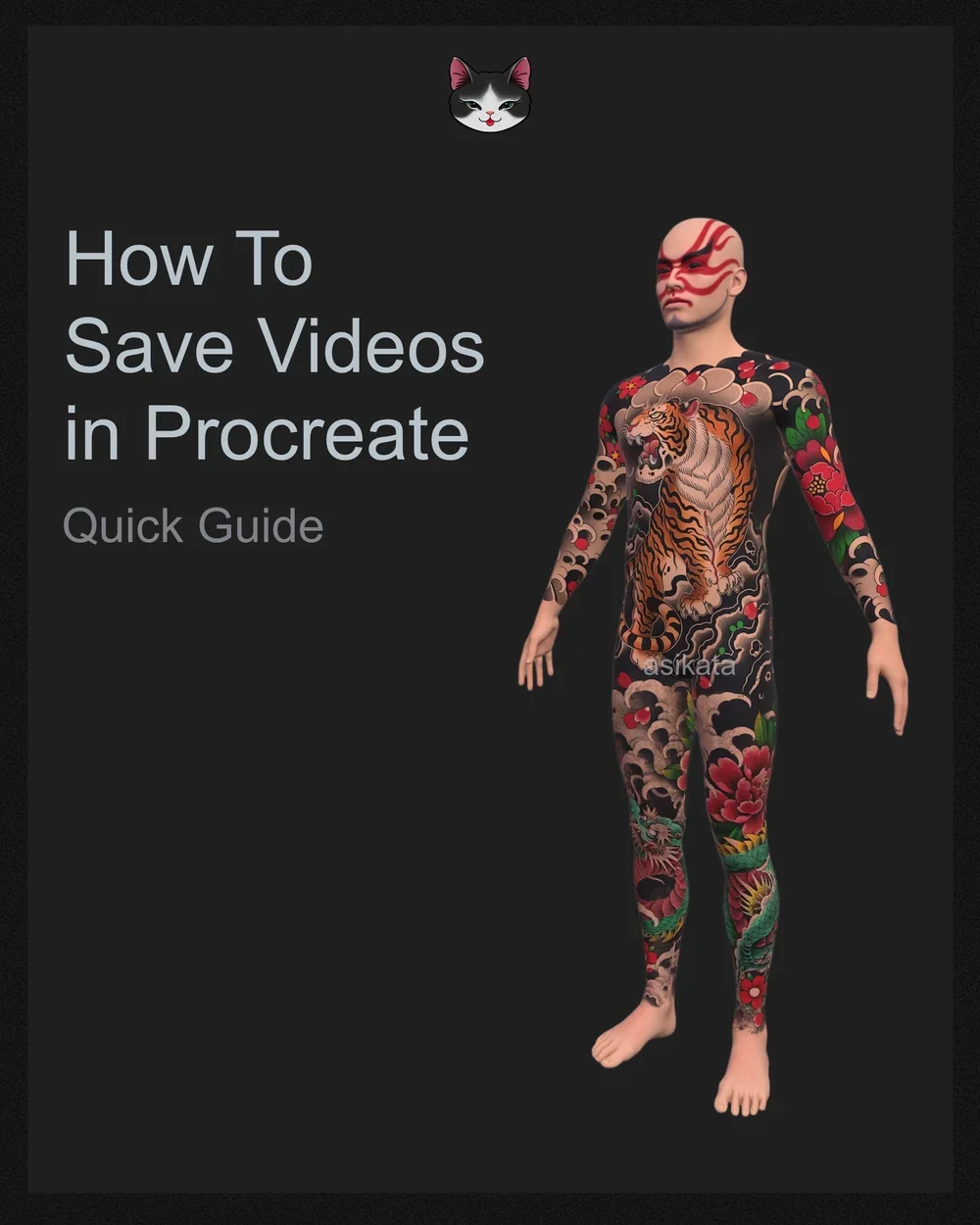
How to Save Videos in Procreate – Quick Guide
I often get asked how I save videos in the Procreate app, so I decided to create a short guide to avoid repeating the same explanation. Here’s how you can do it:
Step 1
Go to Settings > Share > Animated MP4
Step 2
Use these settings:
✔ Resolution: 4K
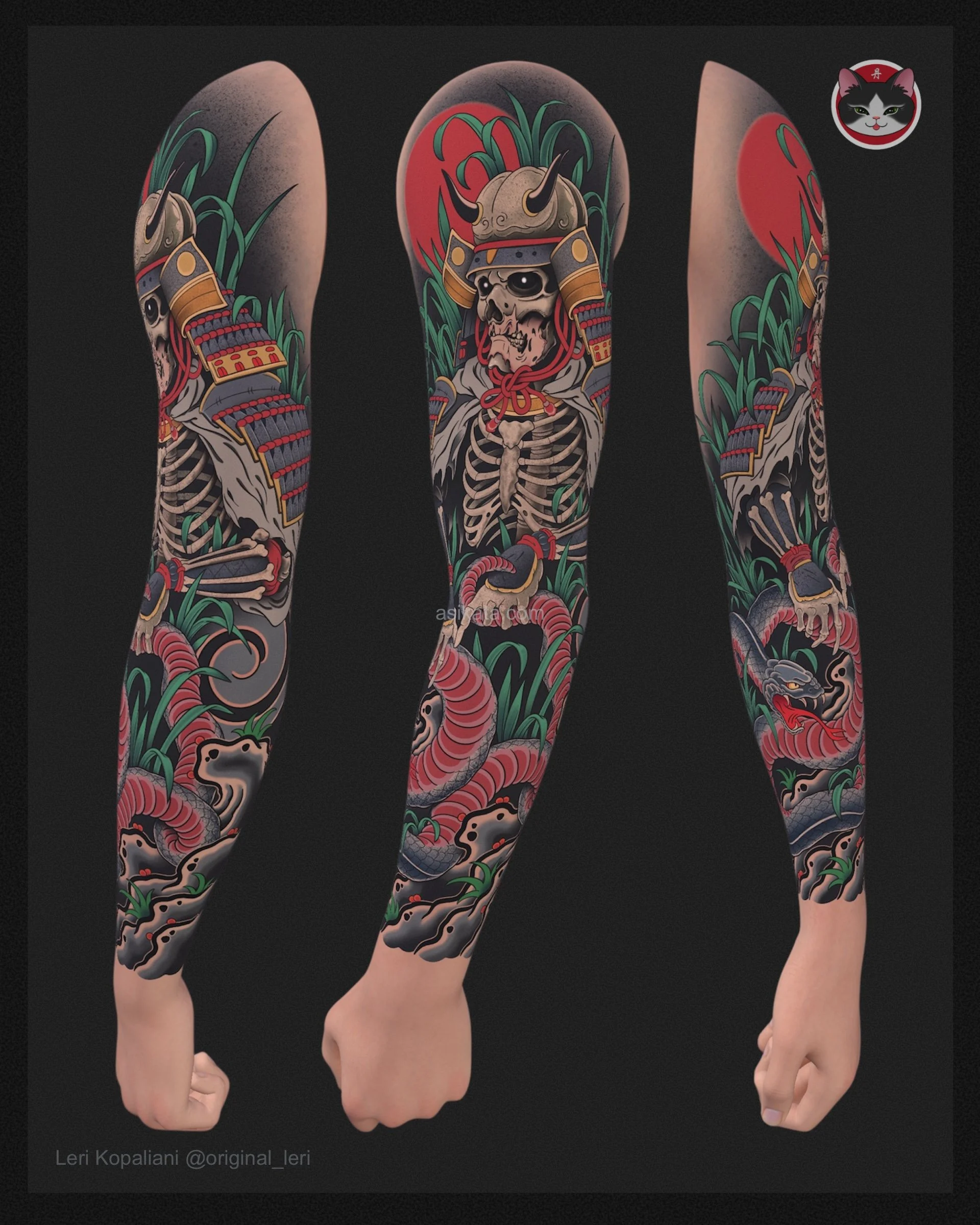
✔ Animation Style: Animated Rotate
✔ Animation Duration: 5 sec
✔ Zoom Distance: 0%
✔ Ease: 0%
✔ Show Environment: Off
(Turning off the environment allows you to use any custom background later.)
Step 3
Use any video editor to:
🔹 Add your watermark or logo
🔹 Decrease the speed
🔹 Duplicate the video to extend its duration if needed
Let me know if you still need help!
Good luck with your art,
Leri 🤜🌟🤛
P.S. These settings are optimized for our 4K models and may not work with free models.
Affiliate Program
💥 Earn Money with Asikata—No Strings Attached! 💥
Exciting news! I’m launching an affiliate program for Asikata.com. Now you can earn 15% commission by sharing my custom tattoo designs, art prints, and digital tools. It’s simple—get your unique affiliate link, share it with your audience, and earn when someone makes a purchase through your link!
Interested? Here’s the affiliate link
https://asikata.gumroad.com/affiliates
Update
🌟 We're excited to introduce new options to give you more flexibility and exclusivity when shopping with us!
• Name Your Price
• Pay in Installments
• Legendary Orders
• Adidas, Champion, and Other Iconic Brands
Details:
Name Your Price – Pay what you believe is fair and receive the product with no hidden fees or trials.
Pay in Installments – Spread the cost into equal monthly payments instead of paying the full amount upfront.
Legendary Orders – If you find a finished design you love and want to make it exclusively yours, a Legendary Order ensures no future sales of that design.
Try them out today and experience a new level of convenience and customization!